Change orders & approvals
Construction Change Order Example: Keep Extra Work Connected to the Job
Record the scope, price, schedule impact and client approval for extra work, while keeping every change connected to the job.
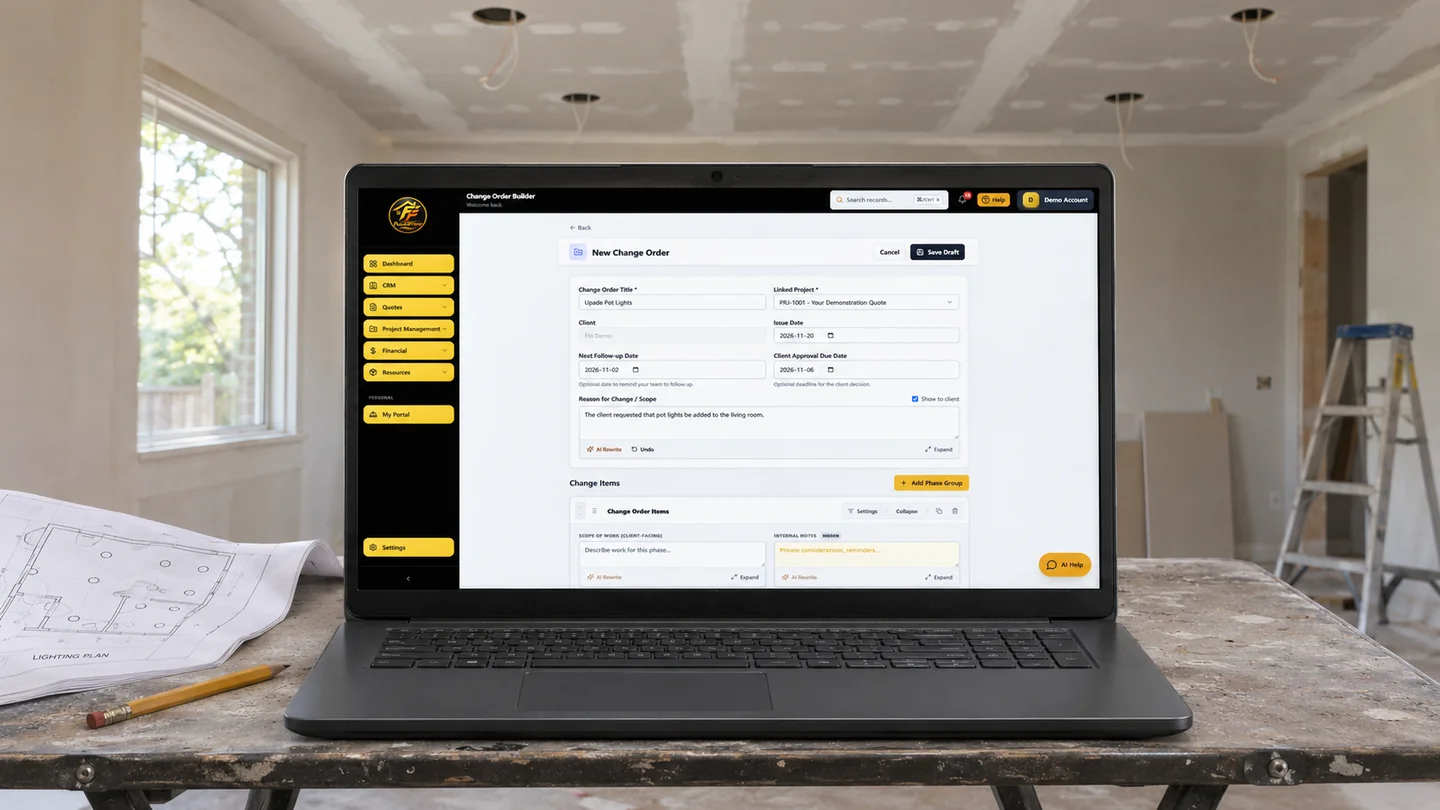
A construction change order records an agreed change to an existing project. It should identify the client and project, explain what is being added, removed or revised, show the price and schedule impact, and record approval before the changed work begins.
The document should also remain easy to find when it is time to plan the work or prepare an invoice.
In this guide, we explain what to include, walk through a pot-light example and share a reusable checklist.
Why we wanted change orders connected to the project
When researching workflows for FuzedFlow, our team encountered examples where additional work was handled through a separate quote or sent directly as an invoice. The information existed, but its connection to the original project was not always clear.
That shaped the workflow we wanted to build: a change order with its own scope, price and approval, linked to the client through the relevant project.
A contractor should be able to answer three questions without piecing together separate conversations: Which job does this belong to? What changed? Has the client approved it?
What should a construction change order include?
A useful change order gives both sides enough information to understand the decision.
- A clear reference: Change-order number, title and issue date.
- The client and project: Identify the existing job and its original quote or agreement.
- The reason for the change: Explain the client request or project condition that prompted it.
- The revised scope: Describe the work being added, removed or changed, including relevant quantities and exclusions.
- The price: Show additions, credits, applicable tax and the resulting amount to approve.
- The schedule impact: State whether the change affects sequencing or completion, including anything still awaiting confirmation.
- The approval record: Follow the approval process agreed for the project and keep the decision with the change order.
- The next action: Identify what needs scheduling, ordering or invoicing after approval.
A title such as “Additional living-room pot lights” is easier to recognize later than “Extras.”
Construction change order example: adding four pot lights
Imagine a living-room renovation is underway. The approved scope does not include new recessed lighting, but the homeowner asks to add four pot lights before the ceiling work is finished.
A short text saying “Please add the lights” leaves questions about the fixtures, switching, ceiling repairs and price. A change order brings those details together.
The example below uses fictional project details and illustrative amounts in CAD. It is not a recommended market price.
| Field | Example |
|---|---|
| Change-order reference | CO-002 — Additional living-room pot lights |
| Linked project | PRJ-1001 — Living-room renovation |
| Reason for change | The homeowner requested four additional recessed lights after approving the original scope. |
| Added scope | Supply and install four agreed pot lights, update the agreed switch/control arrangement and patch the ceiling areas affected by this work. |
| Scope clarification | Whole-room repainting is excluded from this change order. The original painting scope remains as quoted. |
| Schedule impact | Allow one additional working day. Confirm the electrical visit and revised sequence before promising a completion date. |
| Approval needed | Before booking and starting the additional work. |
Make the price easy to review
| Added work | Illustrative amount |
|---|---|
| Four pot lights, supplied and installed at $150 each | $600 |
| Agreed switch/control adjustment | $100 |
| Patching directly affected ceiling areas | $150 |
| Change-order subtotal, before applicable tax | $850 |
Show applicable tax and the final approval total in the document. If the change removes work already included in the original price, show the credit clearly too.
The aim is a decision the homeowner can understand: what they are receiving, what it costs and what it means for the job.
How the change moves through FuzedFlow
FuzedFlow’s change-order workflow is available on Professional and Business.
1. Create the change order against the project
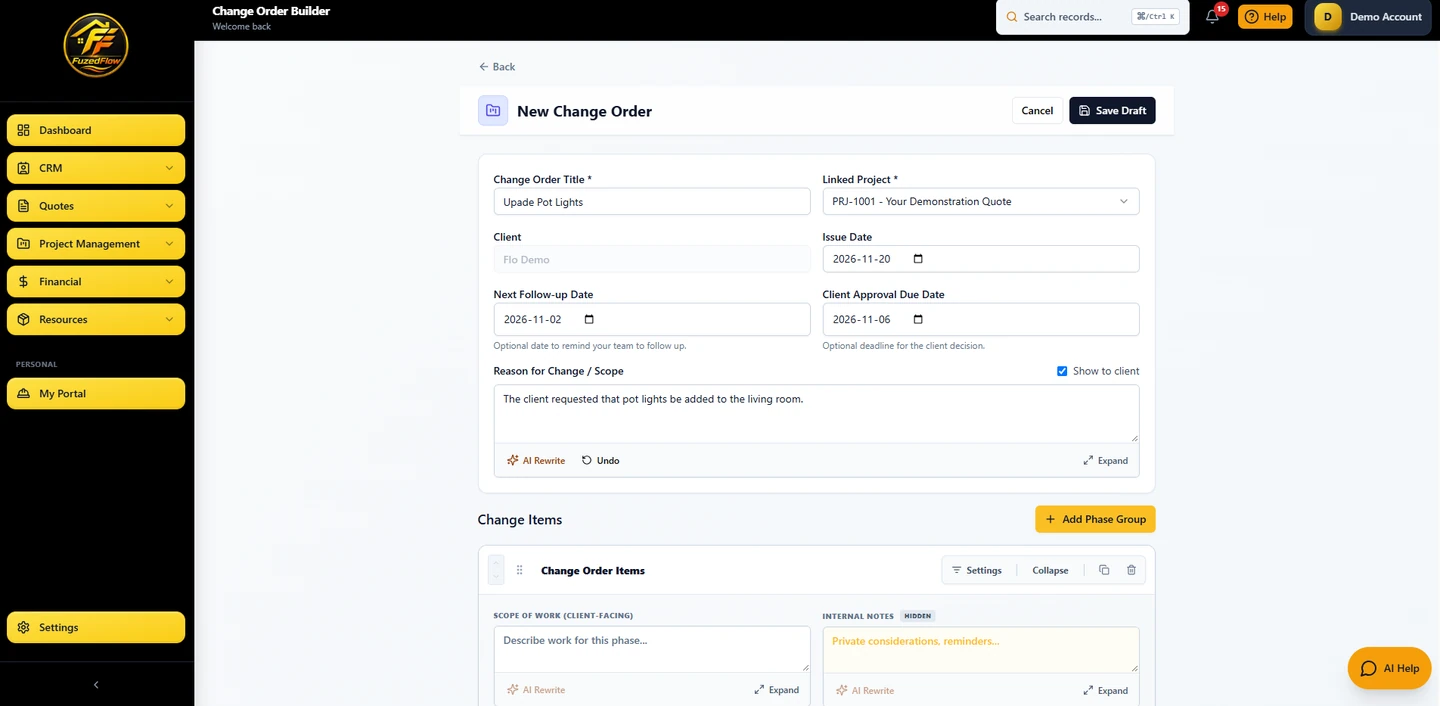
Choose the linked project so the additional work belongs to the correct job and client. Give the change order a recognizable title and explain the reason for it.
The builder shown in the accompanying screenshot includes a linked-project field, client details, scope wording and dates for follow-up and the client’s decision.
2. Describe and price the changed work
Add the relevant change items and client-facing descriptions. Make additions, credits, exclusions and schedule implications clear before sharing.
Keep internal planning notes separate from the information intended for the homeowner.
3. Send it for the client’s decision
Share the change order for online review and approval. The client can review the proposed change in its project context.
When the client approves, the decision is recorded and the team is notified. Email and SMS alerts depend on the recipient’s enabled notification preferences; they should not replace checking the saved approval record.
4. Update the work plan
Review what the approved change means for the trades, materials and sequence of work. Confirm those arrangements before giving the client a revised date.
Approval and scheduling are separate steps. Keeping the document linked to the project gives the team a clear reference for both.
5. Invoice the approved change
Convert agreed work into an invoice through the change-order workflow, following the payment arrangements for the project.
Keep the reference and description clear so the client can connect the invoice to the extra work they approved.
A reusable change-order template
Use this structure as a starting point, then adapt it to the project and your agreed approval process.
Change-order number: [Reference]
Title: [Recognizable description]
Client: [Client name]
Project and original quote: [Project reference and quote/agreement reference]
Issue date: [Date]
Reason for change:
[Who requested the change, or what condition prompted it?]
Added, removed or revised scope:
[Describe the work, quantities and relevant specifications.]
Exclusions and assumptions:
[Explain the boundaries of this change.]
Price:
[Additions less credits, applicable tax and final approval total.]
Schedule impact:
[Confirmed impact, or what must be checked before confirming dates.]
Approval:
[Client decision and date, recorded using the agreed process.]
Next action:
[Who will arrange the work, update the project and prepare the invoice?]
Common questions
Is a change order the same as another quote?
A change order can contain quote-like details, but it records a change to an existing job. Keeping it linked to that project helps distinguish the original scope from later decisions.
Can we send an invoice for the extra work instead?
An invoice requests payment. It does not, by itself, explain whether the client agreed to a change before the work began. Document the scope, price and decision using the process agreed for the project.
Do all change orders increase the price?
No. A change can add work, remove work or substitute one item for another. It may create an additional charge, a credit or no price adjustment. Record schedule implications separately.
Which FuzedFlow plans include change orders?
Change orders are included on Professional and Business. Check the current plan comparison when choosing the workspace for your team.
Keep the extra work connected
Small requests still deserve a clear record. A separate change-order document can make the decision easy to review while its link to the client and project keeps the job history understandable.
Explore FuzedFlow change orders or request a walkthrough using an example from the work you do.